Ever wondered why some prints look sharp while others appear slightly blurry? The answer often comes down to their DPI. This simple but crucial setting influences how much detail a printer can reproduce and how smooth the final image looks once it leaves the screen and hits paper. Understanding DPI helps you choose the right print resolution for photos, documents, and any project you want to print with confidence.
DPI explained briefly
DPI (dots per inch) describes the number of printed ink dots per inch and directly affects print sharpness and visual detail; higher DPI values typically produce clearer results.
Definition: DPI
DPI stands for dots per inch and defines how the print resolution of an image is measured. It indicates the number of individual dots of printing ink or toner that a printer can produce within a single linear inch. Each of these dots represents a small piece of information, and together, they form the printed image.
In simpler terms, DPI describes how densely packed the ink dots are on paper. The higher the DPI, the more detailed and crisp the printed result will appear. For example, a 300 DPI print contains 300 tiny ink dots in every inch, creating smooth color transitions and fine details, while a 72 DPI print appears more grainy or pixelated.
Modern printers vary in their maximum DPI output depending on the type of printer and the printing technology used. Inkjet printers, for example, typically range from 300 to 1200 DPI, while professional laser printers and photo printers can reach even higher resolutions.
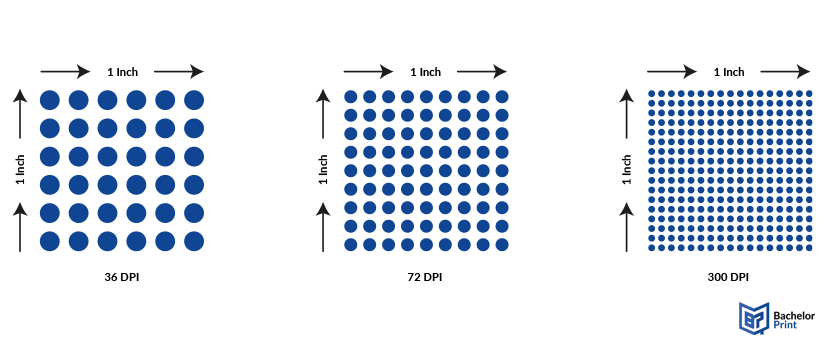
Note: The DPI values shown are rounded for visual clarity. Exact dot counts (e.g., √72 ≈ 8.49 and √300 ≈ 17.32) were simplified to create clean, even grids.
Why is DPI important?
DPI plays a crucial role in how your printed image will look and feel.
- Determines print clarity and color accuracy
- Impacts file size, printing time, and ink consumption
- Influences sharpness, gradient smoothness, and texture reproduction
- Critical for professional printing, photography, magazines, and marketing materials
Printing services at BachelorPrint
- Individual solutions & personal support
- High print quality & fast production times
- Wide range of print products for every need
Learn more!
Origin of the dot
Before modern digital printing existed, images were reproduced through a fascinating analogue process that laid the foundation for the concept of dots per inch (DPI).
Black & white beginnings
Early black and white photographs were continuous tone, containing infinite shades of gray. Printing presses, however, could only apply one color of ink.
To mimic these shades, printers invented halftoning, a method that broke continuous tones into tiny dots of varying sizes. These dots blended visually to create the illusion of a gradient and depth.
Halftone revolution
Halftones were created using glass screens with tiny apertures. A photograph or negative was re-shot through the screen onto high-contrast film, resulting in a pattern of black dots.
This was a breakthrough because it allowed printed photos to appear more lifelike, using nothing more than variations in dot sizes and density.
Offset printing & mass production
With the rise of offset printing, halftones were transferred to printing plates. Each plate deposited ink on paper with precise pressure and alignment.
- Newspapers used coarse, low-DPI halftone so ink wouldn’t bleed on cheap newsprint.
- Magazines and art prints used high-DPI halftones for sharper, more refined details.
CMYK color breakthrough
As color printing emerged, the same concept evolved into the CMYK process (cyan, magenta, yellow, and black).
Each color was printed from a separate plate, aligned at exact angles to create a full-color image. When these coloured dots overlapped, they simulated the entire color spectrum visible to the human eye.
DPI as a measure of print precision
In essence, DPI measures how densely these dots are printed per inch.
➜ The higher the DPI, the finer the detail, the smoother the gradients, and the sharper the image.
DPI vs. PPI
Both PPI and DPI influence how crisp and detailed an image looks, but in different worlds:
- DPI (dots per inch) ➜ physical print (ink on paper)
- PPI (pixels per inch) ➜ digital (screens and displays)
To achieve perfect results, ensure your digital PPI and print DPI match. For a more in-depth comparison, take a look at the full section in this article:
How to find the DPI of an image
Different programmes label this setting slightly differently (e.g., resolution, pixels/inch, PPI). Below are quick steps for the most common tools. If no DPI is stored in metadata, you can still calculate it:
DPI = pixel dimension ÷ print size (inches)
- Open File Explorer and locate your image.
- Right-click on the image file and select Properties.
- Open the Details tab at the top pub.
- Check Horizontal resolution and Vertical resolution (this is the image’s DPI tag).
Note: Windows may also show Dimensions (px). If needed, computer DPI from pixels and your intended print size.
- Open Finder and locate your image.
- Right-click or control-click the file and select Open With ➜ Preview.
- With the Preview open, go to Tools ➜ Show Inspector.
- On the first tab, General Info, view the Image DPI/Resolution (may be listed as Pixels/Inch).
- If not visible, switch to More Info in the Inspector.
Note: Some files default to 72 PPI if no resolution was set. Simply use the formula above if you need a true print DPI.
- Launch Photoshop.
- Go to File ➜ Open your image.
- Then, click Image ➜ Image Size.
- The Resolution field shows the image’s stored DPI (metadata).
- Untick Resample to change DPI without changing pixel data.
- Tick Resample only if you intentionally want to add/remove pixels.
What DPI should I use?
The right DPI setting depends on what you’re printing and how it will be viewed. Factors like output type, viewing distance, paper quality, and printing technology all play a role in determining the ideal value. Choosing the correct DPI ensures your prints look sharp without wasting unnecessary ink or file size.
Rule of thumb:
- 72 DPI: On-screen previews or online images
- 150–200 DPI: Large-format posters
- 300 DPI: Industry standard
- 600 DPI: Professional and fine-art level
Recommended DPI by purpose
Here’s an overview of different media and their recommended DPI:
Medium
Recommended DPI
Why?
Photographs
300 DPI
Ensures crisp details and smooth color transitions.
Flyers & brochures
300 DPI
Balanced sharpness and readability for marketing materials.
Business documents
300 DPI
Professional output with clear text and graphics.
Posters
100–150 DPI
Lower DPI acceptable since distance hides fine details.
Magazines & books
600 DPI+
Demands precise lines and dense color for high-quality paper.
Fine art & exhibitions
1200 DPI
Extreme precision for photographic or museum-grade prints.
Factors to consider when choosing DPI
There are several factors you have to consider when choosing the DPI of your medium:
- Print size: Larger prints need fewer dots per inch since viewers stand farther away.
- Viewing distance: The farther the viewing distance, the less DPI is required.
- Paper type: Glossy or coated paper can handle higher DPI values.
- Printer type: Inkjet printers, laser printers, or offset printers have different DPI capabilities.
- Ink quality: High-quality pigment inks benefit more from higher DPI settings.
Certificate printing at BachelorPrint
- Choose from fine papers with premium finishes
- Custom certificate printing for any occasion from £0.08
- Celebrate achievements & awards with elegant certificates
Learn more!
How to change DPI
Sometimes, you may need to adjust the DPI to prepare it for printing. Most image editors make this simple, but it’s important to understand that increasing DPI doesn’t add detail if your original file doesn’t contain enough pixels. You can change the DPI value, but it won’t magically create new information.
- Open your file in Photoshop.
- Go to Image ➜ Image Size.
- In the dialogue box, set the Resolution unit to Pixels/Inch.
- To change DPI without altering image size, uncheck “Resample.”
- Enter your desired value (e.g., 300 DPI).
- Click OK to apply.
Result: The DPI metadata changes while the pixel dimensions stay the same.
- Open the image in Preview.
- Go to Tools ➜ Adjust Size.
- In the Resolution box, enter a new DPI value (e.g., 300).
- Deselect “Resample image” if you only want to change the DPI tag, not the actual pixels.
- Save the file to apply the change.
- Open your image in Paint or a similar editor.
- Select File ➜ Properties (in Paint) or Image ➜ Resize (in other editors).
- Choose Pixels/Inch as the unit of measurement.
- Enter your new DPI value.
- Save the file with a new name to preserve the original.
Examples
Choosing the right DPI depends on the purpose of your print. Below is a quick reference table showing typical DPI values for common applications.
FAQs
DPI stands for dots per inch and refers to the number of individual ink dots a printer can place within one inch of paper.
In terms of dot density, 1200 DPI offers finer detail than 300 DPI, but the difference is only noticeable in specific contexts such as high-end photography, fine art, or line drawings. For most prints, 300 DPI already delivers professional quality.
Not exactly.
- PPI describes digital resolution on screens.
- DPI measures print resolution on paper.
When an image with 300 PPI is printed at 300 DPI, both align to produce a sharp, detailed result.
The number is literal. 300 DPI means 300 printed dots per inch of paper, arranged both horizontally and vertically. That equals about 90,000 dots per square inch (300 × 300).
Yes. 300 DPI is the industry standard for high-resolution printing. It ensures fine detail, accurate color transitions, and professional sharpness. Anything lower may appear slightly pixelated when viewed up close.
