A color gradient creates a seamless shift between colors and is a key technique in modern digital and print design. You’ll see gradients in everything from app interfaces and branding to posters and packaging. Since gradients often look brighter in RGB than in CMYK, understanding how they convert for print is key to maintaining clean transitions and accurate print color results.
Color gradient explained briefly
A color gradient is a smooth transition between two or more colors or tones used to create depth or visual flow in an image. In printing, gradients produce subtle shading and seamless blends when reproduced.
Definition: Color gradient
A color gradient is a smooth, gradual transition between two or more colors. You can see natural gradients in everyday life.
In design, gradients are used across digital graphics, branding, UI elements, and printed layouts to add depth and visual flow.
Because gradients are created in RGB on screen but reproduced in CMYK for print, their appearance can shift slightly during the conversion process. This detail will be explored later in this guide.
High-quality color copies from just £0.15
- Choose from different paper formats & paper weights
- Configure finishing options & add any extras you need
- Easy online ordering process with delivery to your doorstep
Learn more!
Types
Color gradients come in many forms, each creating a different visual flow. Below are the most common types:
Linear (axial)

A straight-line transition between colors; vertical, horizontal, or diagonal.
Radial
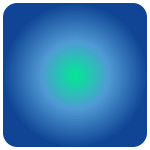
Colors spread outward from a central point, creating a circular or spotlight effect.
Conic (angular/sweep)
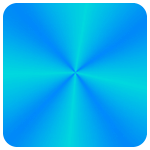
Colors rotate around a center point, similar to a pie chart or color.
Diamond
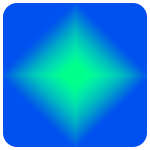
A gradient expanding outward in a diamond shape, useful for soft highlighting.
Reflected
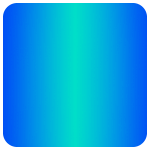
A mirrored linear gradient with a central midpoint, often used for metallic effects.
Mesh
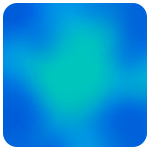
A complex grid-based blend allowing multi-directional, organic color transitions.
Freeform
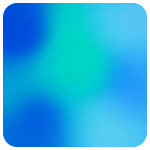
Multiple color points placed freely within a shape, ideal for irregular blends.
Shape blur
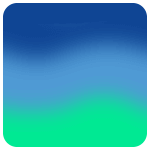
Formed by layering soft, blurred shapes to build atmospheric transitions.
Multiple
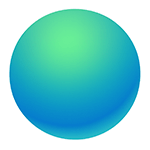
Combining several gradients within one shape to create dimensional patterns.
How to create
To create a color gradient, you use a graphic editor’s gradient tool. Most design programmes follow the same basic process, whether you’re creating linear, radial, conic, or more advanced freeform blends.
- Select the gradient tool in your design software.
- Choose one or more color stops.
- Pick a gradient type (linear, radial, conic, etc.).
- Click and drag to define the direction and length.
- Adjust the midpoint, angle, and opacity.
- Add extra stops for more complex transitions.
- Preview the result in RGB and CMYK if you’re preparing a print file.
- Select the gradient tool (G).
- Click the gradient preview in the top pub to open the gradient editor.
- Choose a preset or create your own by adding color stops.
- Select a gradient type (linear, radial, angle, reflected, or diamond).
- Click and drag across your canvas to apply the gradient.
- Move color stops and midpoints to refine the blend.
- Adjust opacity for fade effects.
- Apply gradients on separate layers for more flexibility using blend modes.
-
Select the object:
- Click the shape or text you want to fill with a gradient.
-
Activate the gradient tool:
- Press G or go to Window ➜ Gradient to open the gradient panel.
-
Select your colors:
- Add or adjust color stops on the gradient slider.
- Click directly on a stop to change its color, or double-click to open the full color picker.
-
Add more color stops:
- Click anywhere along the slider to add additional stops.
- This helps build more complex gradients with multiple hues.
-
Choose a gradient type:
- Linear: Straight-line transition
- Radial: Circular transition from the center outward
- Freeform: Multiple points placed freely inside the object
- Use the gradient panel to switch types.
-
Apply the gradient:
- With the gradient tool active, click and drag on the object to define the direction, length, and angle of the gradient.
-
Adjust the blend:
- Use the diamond midpoint icon between stops to shift the balance between colors.
- Move stops left or right to control dominance, direction, and smoothness.
-
Fine-tune the gradient:
- Change opacity for transparent fades.
- Adjust the angle numerically in the gradient panel.
- Reposition stops for smoother or sharper transitions.
-
Create freeform gradients:
- Choose freeform in the gradient panel then click to add multiple points inside the object.
- Drag each point to influence how the color spreads.
- Use “line mode” (if available) to connect points for a structured flow.
-
For advanced shading:
- Use gradient mesh (object ➜ create gradient mesh) to generate a grid of editable mesh points where each node can hold its own color.
-
Prepare for print:
- Switch the document to CMYK (file ➜ document color mode ➜ CMYK color).
Tools & resources
There are many tools that make creating gradients quick and intuitive. Below are the most common options designers use.
Online generators
These browser-based tools are ideal for quick prototypes or generating CSS code for projects:
- Coolors: Lets you build custom palettes and gradients.
- uiGradients: A curated gallery of popular gradients for inspiration.
- CSS Gradient: Creates gradients and provides ready-to-use CSS code.
- Gradient Hunt: A community-driven library of trendy gradient color combinations.
Professional design software
For full control over complex gradients, these programmes offer powerful editors, multiple gradient types, and CMYK compatibility for print.
- Procreate: Offers flexible brush-based gradient tools for digital illustration.
- Adobe Illustrator: Best for vector gradients, freeform gradients, and gradient meshes.
- Figma & Sketch: Excellent for UI gradients, design systems, and collaborative workflows.
- Adobe Photoshop: Ideal for pixel-based gradients, layered effects, and photo editing workflows.
PDF printing at BachelorPrint from £0.08
- Upload your files & order printed PDFs in minutes
- Secure online PDF printing service with reliable delivery
- High-quality prints from any PDF, including reports & more
Learn more!
Applications
Color gradients appear across nearly every creative field. They help guide the viewer’s eye, add depth, and create smooth visual transitions that feel modern and dynamic.
Digital design
- UI design: Gradients add depth, hierarchy, and a contemporary look to interactive elements.
- Branding: Many brands, like Instagram, use recognizable gradients as a core element of their identity.
- Backgrounds: They create dynamic backdrops that feel richer than flat colors, working well for websites.
Print design
Gradients also play a crucial role in print color, although they require meticulous preparation.
In CMYK, gradients can shift slightly compared to RGB screens. Thus, smooth transitions depend on:
- Proper color mixing
- Correct color profiles
- Consistent color correction
Poorly prepared gradients may exhibit visible banding, particularly in artwork with low print resolution. However, professional printing, like BachelorPrint’s high-resolution print workflow, ensures gradients remain smooth, vibrant, and free of unwanted artifacts.
Note: In brand materials, gradients must be checked against corporate identity color guidelines to avoid off-brand hues.
How gradients enhance visual impact
There are multiple reasons why color gradients enhance the visual impact of your design.
Light simulation
Gradients can act like virtual lighting, adding mood, contrast, and a sense of atmosphere without relying on complex shading techniques.
Focal-point guidance
Radial or diamond gradients can create a halo effect around an element, subtly directing attention without overwhelming the composition.
Richer palette
Gradual transitions make even simple color palettes feel more dynamic. A neutral 3-color scheme instantly becomes more engaging.
They simply look cool
Even minimal gradients carry a visually appealing, almost mesmerizing quality. The smooth flow of color adds sophistication to nearly any design.
Depth & dimensions
Smooth color shifts can transform flat shapes into forms that appear more three-dimensional.
- Conic gradients mimic side lightning
- Linear gradients suggest overhead or underlighting
- Radial and diamond gradients create soft backlighting
Gradients in print
Gradients behave differently in print than they do on screen, which makes proper file preparation essential.
RGB ➜ CMYK shifts
Because RGB screens display a wider color range than CMYK can reproduce, certain gradient colors, especially neon colors, may appear slightly duller in print. Converting your artwork to CMYK early allows you to preview and adjust the gradient before finalizing your design.
Avoiding banding
Banding occurs when a gradient displays visible steps instead of a smooth transition. To prevent this:
- Use correct color profiles
- Export artwork at a high DPI (300 DPI for print)
- Add subtle noise or dithering to smooth transitions
- Ensure gradients cover enough tonal range without abrupt changes
Paper selection matters
Which printer paper type (texture and coating) you use can influence how a gradient appears:
- Coated papers produce smoother, more vibrant gradients
- Uncoated paper absorb more ink, potentially softening the gradient
Choosing the right substrate improves print color accuracy and reduces visible steps.
When spot colors or advanced printing help
Some gradients include hues outside CMYK’s range or require extremely precise transitions. In these cases, advanced production methods can help:
- Spot colors (e.g., Pantone colors) for specific brand tones
- High-resolution digital printing for soft, detailed gradients
- Fine-tuned color management for consistent output across materials
Why professional printing makes a difference
Professional print systems, like those used by BachelorPrint, manage gradients with high-resolution output, calibrated color workflows, and consistent ink application. This ensures your gradients remain vibrant and free of banding, even in challenging color combinations or large-format prints.
FAQs
A color gradient is a smooth transition between two or more colors, used to create depth, atmosphere, or visual flow in a design. Gradients can be linear, radial, conic, or more complex freeform blends.
Yes, gradients remain extremely popular in. Their versatility and modern look keep them consistently in trend.
You create a gradient using a graphic editor’s gradient tool, choose one or more color stops, pick a gradient type, and adjust the direction, opacity, and midpoint. The process is similar across Photoshop, Illustrator, and most design tools.
Common types include linear, radial, conic, diamond, repeating, mesh, freeform, shape blur, and multiple gradients. Each creates a different visual effect and is suited to different design needs.
An ombré is a specific type of gradient (light-to-dark within one color family), while a gradient can be any color transition (between different hues or within one hue).
